Some image fixes are so basic they're easy to overlook — until a photo shows up rotated the wrong way in an email, or a scanned document is sideways, or you need a mirrored version for a design. Rotating and flipping are the two simplest edits there are, but there's one hidden wrinkle — EXIF orientation — that explains a lot of "why is my photo sideways?" mysteries. Let's cover both the simple part and the wrinkle.
Rotate vs flip: they're not the same thing
People use these words loosely, but they do different things:
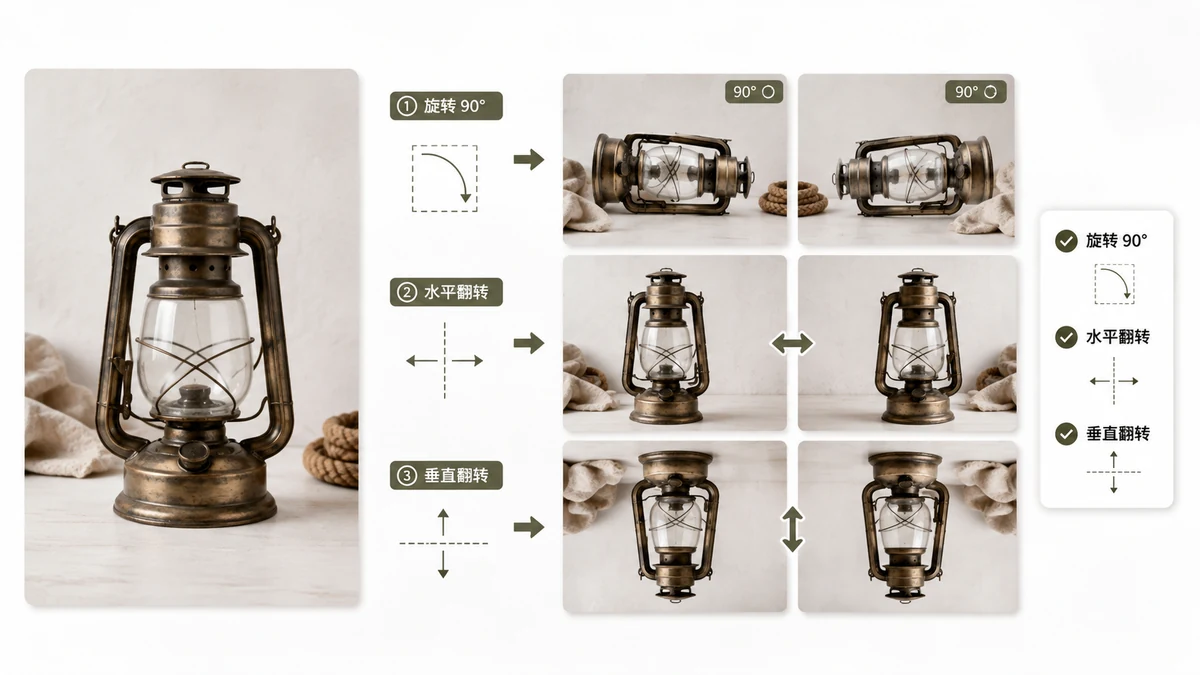
- Rotate turns the whole image around its center. A 90° clockwise rotation stands a landscape photo up into a portrait; 180° turns it upside down. The content is unchanged — just reoriented.
- Flip (mirror) produces a reflection. A horizontal flip swaps left and right, like looking in a mirror — text becomes backwards. A vertical flip swaps top and bottom.
If your goal is to fix a photo that came out sideways, you want rotate. If you want a mirror image — say, to face a subject the other direction in a layout — you want flip. Getting the two straight saves a lot of trial and error.
The common jobs
Most real-world rotate-and-flip needs fall into a handful of cases:
- A sideways photo. Rotate 90° clockwise or counter-clockwise until it stands up correctly.
- An upside-down scan or screenshot. Rotate 180°.
- A mirrored selfie. Front cameras often flip the preview; a horizontal flip puts text and asymmetry back the right way.
- Design symmetry. Flip a copy horizontally to create a mirrored pair.
Rotate & Flip handles all of these — 90° turns in either direction plus horizontal and vertical mirroring — and it runs entirely in your browser, so the photo is never uploaded.
The EXIF orientation quirk
Here's the part that confuses people. You take a photo, and it looks fine on your phone. You send it to someone or open it in a different program, and suddenly it's sideways. You didn't do anything wrong — this is EXIF orientation at work.
When many cameras and phones take a picture, they don't physically rotate the pixels. Instead they save the image in its raw sensor orientation and add a small metadata tag — the EXIF orientation flag — that says "display this rotated 90°." Smart apps read the flag and show the photo upright. Apps that ignore the flag show the raw, un-rotated pixels — sideways.
That's why the same file can look correct in one place and wrong in another. Nothing is broken; two programs are just disagreeing about whether to honor a hidden instruction.
Fixing orientation for good
If a photo keeps flipping between correct and sideways depending on where you open it, the reliable fix is to bake the rotation into the actual pixels and clear the orientation flag. Once the pixels themselves are upright and no conflicting tag remains, every program shows it the same way.
A rotate tool that outputs corrected pixels does exactly this: it applies the turn to the real image data rather than just toggling a metadata flag, so the result is consistent everywhere. That's the difference between a photo that looks fixed in your viewer and one that is fixed for anyone who opens it.
A few practical tips
- Rotate before you crop. Straightening first means you're cropping the final orientation, not guessing.
- Flipping text makes it unreadable. Remember a horizontal flip reverses any words in the image — fine for a landscape, wrong for a sign or document.
- Quality doesn't degrade on a 90° or 180° turn. These are lossless rearrangements of existing pixels; you're not resampling, so nothing gets blurry.
- Keep transparency in mind. Rotating a transparent PNG is fine as long as you export back to PNG or WebP, not JPEG.
Rotate and flip are the small edits you reach for constantly. The only real gotcha is EXIF orientation — and once you know why a photo can look sideways in one app but not another, fixing it for good is a single click.