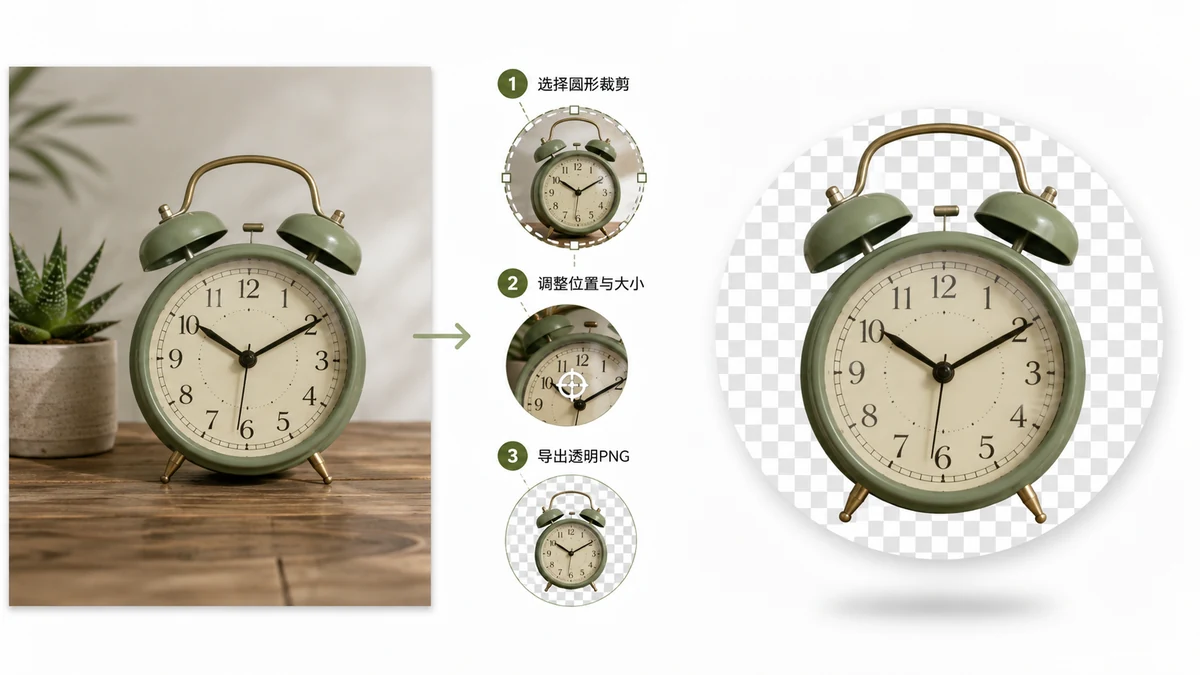
Cropping an image to a circle sounds like it should be one step. The catch is the corners. A circle sits inside a square, and the four corners outside it have to become something. If they become white, your circle carries a white box that shows up the moment you place it on anything that isn't white. If they become transparent, the circle floats cleanly on any background. That difference is entirely down to file format.
Why it has to be a PNG
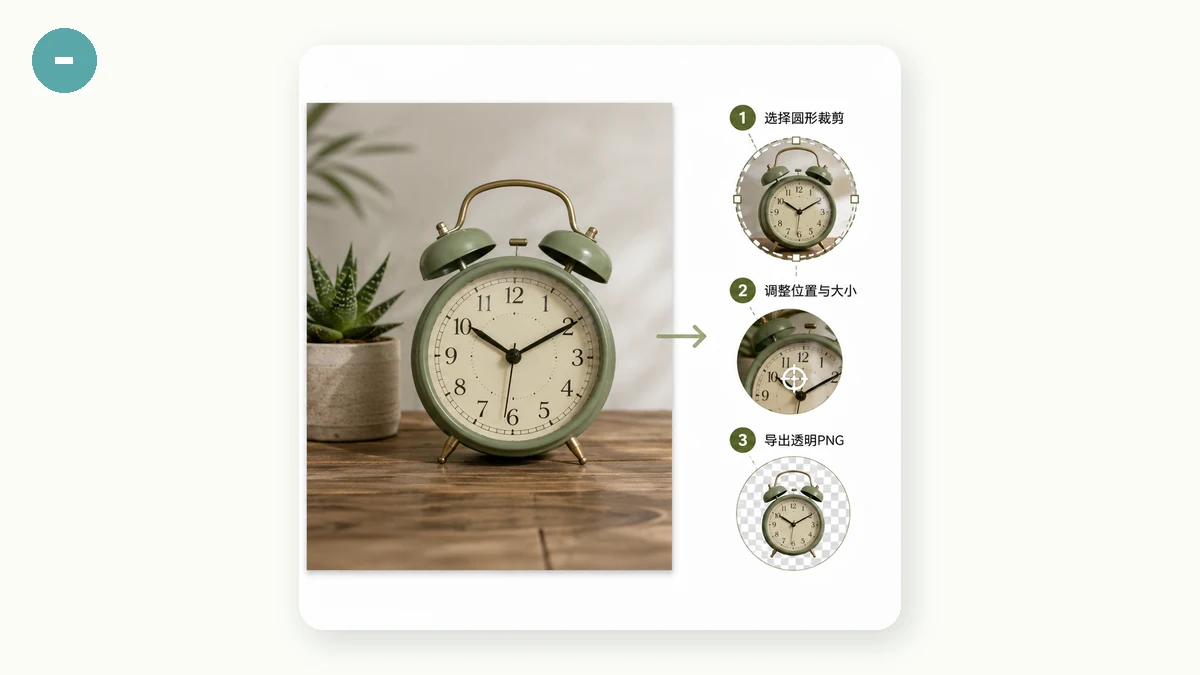
JPEG can't store transparency. Every pixel in a JPEG is opaque, so a "circular" JPEG is really a square with white (or some color) filling the corners. It looks round only against a matching background, and falls apart on a dark page or a colored card.
PNG supports an alpha channel — each pixel can be fully visible, fully invisible, or anything between. That's what lets the corners outside the circle be genuinely empty. So a circular crop with a transparent background is always a PNG. If a tool hands you a JPEG and calls it transparent, it can't be; the format doesn't allow it.
How to make one
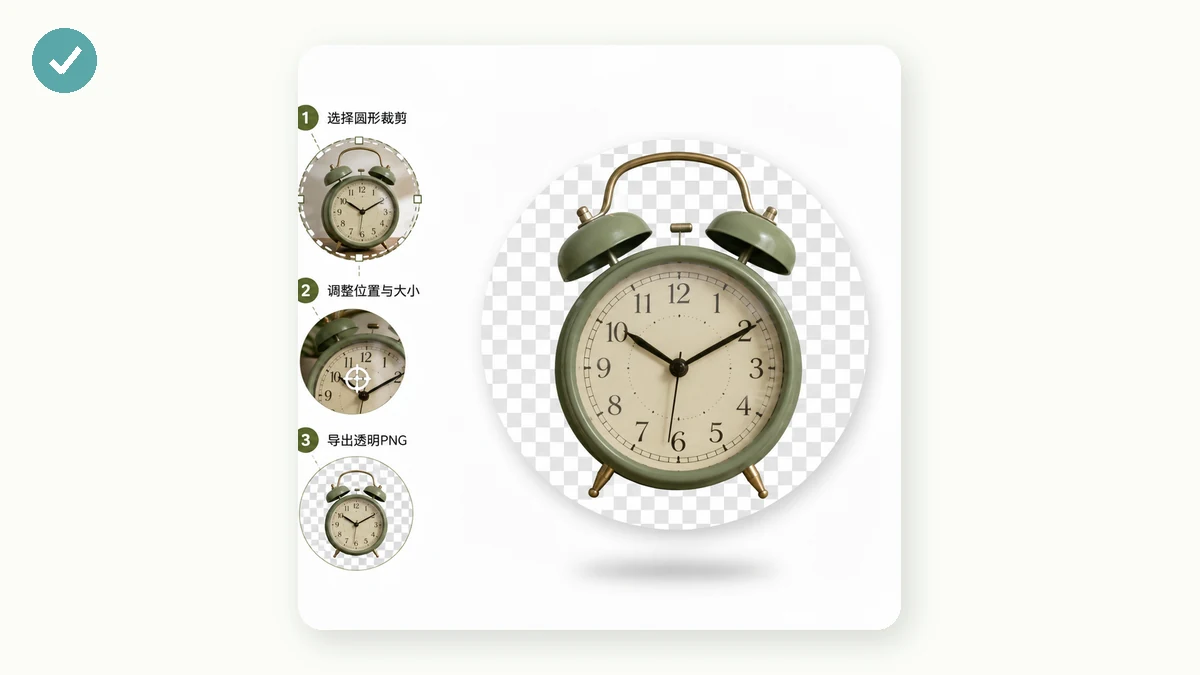
Drop in an image, choose the circle shape, and export with a transparent background. Under the hood it takes the largest square from the center of your image, then masks a circle onto it at full resolution, so the exported edge stays sharp rather than being scaled from a small preview. The corners come out transparent, and the PNG is ready to drop onto any background.
You're not limited to a full circle. A rounded square with an adjustable radius covers app icons and card thumbnails that want soft corners, and a plain square gives you a clean centered crop with no mask. All three export the same way, with transparency in whatever area falls outside the shape.
The edge quality detail
One thing worth knowing: the mask is applied at the image's full resolution, not to a downscaled preview. That keeps the circular edge crisp instead of jagged or soft. If you've ever cropped a circle somewhere and noticed a stair-stepped rim, that's usually the result of masking a small preview and scaling it up. Doing it at full size avoids that.
Honest limits
The crop is centered — it takes the middle square of your image and there's no handle to reposition the frame. That's ideal when your subject is already centered, and awkward when it isn't. If the part you want is off to one side, crop the image down to it first with a basic cropper, then circle-crop the result. It also processes one image at a time, so it's built for a single clean cut, not a batch of fifty.
It stays on your device
The whole thing runs in your browser. Your image is decoded, squared, masked, and encoded to PNG locally — nothing is uploaded, there's no account, and no server ever receives the file. Load the page once and it works offline. Pick an image, crop it to a circle, export a transparent PNG, and it'll sit cleanly wherever you put it.