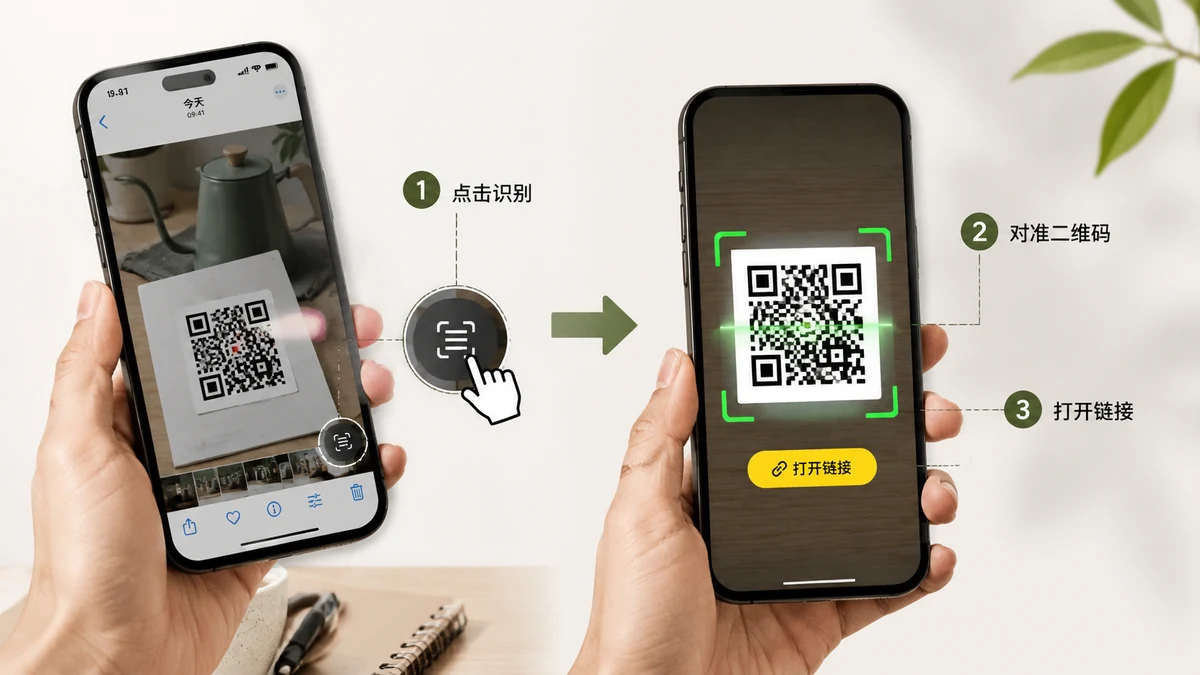
Someone sends you a QR code. Not a physical one on a poster — a screenshot, sitting in your chat app, on the same phone you'd normally scan with. Maybe it's a Wi-Fi code for a friend's flat, an event ticket, a link to join a group. You point your camera at it out of habit and… there's nothing to point at. The code is on the screen, not in front of it.
This is one of the most common QR headaches, and it has nothing to do with the camera being broken. A camera reads codes in the physical world. When the code is already an image file, you don't need a camera at all — you need something that reads the code out of the image. Here's how to do that on any device.
Why the camera can't help here
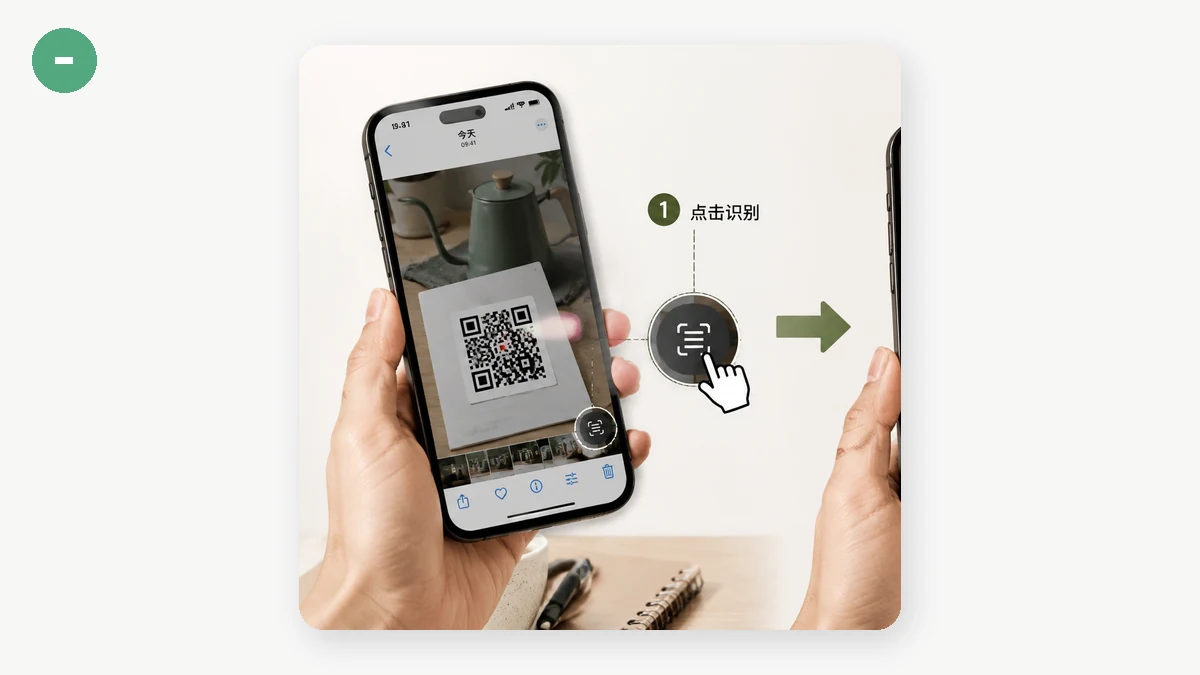
Your phone's scanner works by watching a live video feed and looking for a QR pattern in it. That's perfect for a code printed on a menu or a parcel. But a screenshot is a picture that lives on the same display — the front camera can't see the screen it's part of, and the rear camera can't either without a second screen to show the code. People end up emailing the screenshot to a laptop, opening it on a tablet, or asking a friend to hold up their phone. All of that is a workaround for a problem that doesn't need one.
The code's contents are already in the file. Decoding it is just reading, not scanning.
Read it straight from the image
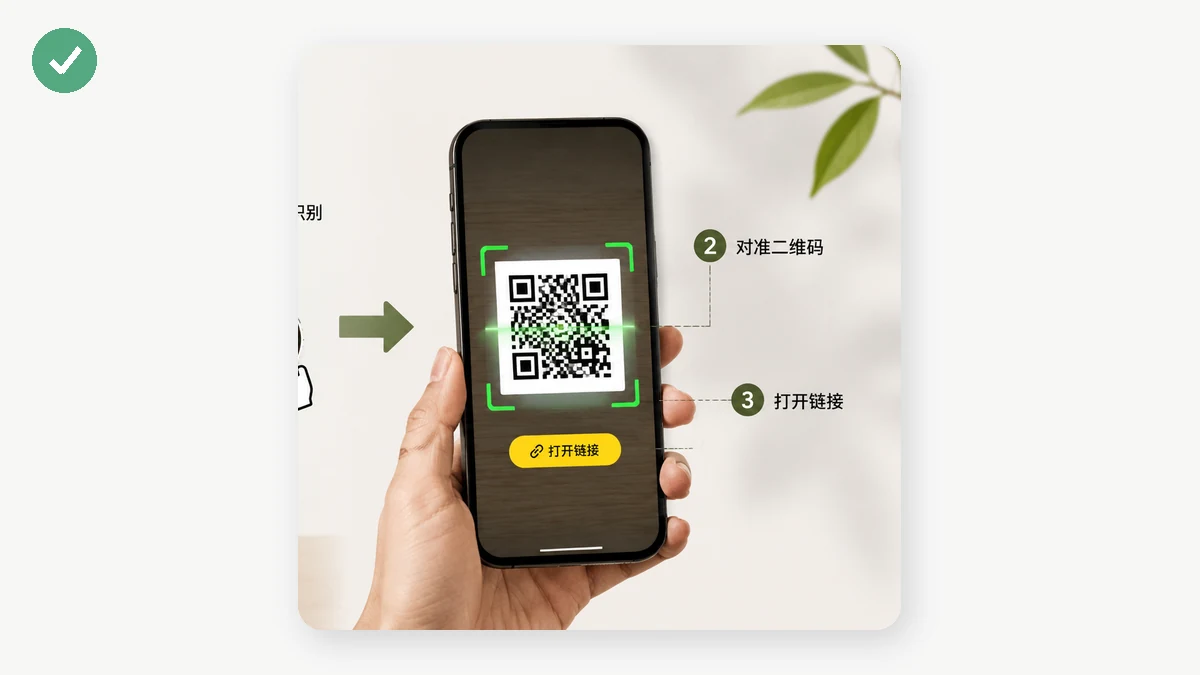
The direct fix is a tool that takes the image and decodes the QR inside it. Drop in the screenshot, get the text out.
The QR Code Reader on tools.faxianai.com works exactly this way. You drag the screenshot in, paste it from your clipboard, or pick the file — and it decodes the code in your browser and shows you what's inside. If the code is a URL, you get a link you can click; if it's text (like a Wi-Fi string or a plain message), you get the text and a copy button. It runs entirely on your device, so the screenshot never gets uploaded anywhere.
A neat detail: because you can paste, on many systems you don't even need to save the screenshot first. Take the screenshot, copy it, paste it in.
Step by step, on each device
On a phone (iOS/Android): Save or screenshot the QR image to your photos. Open the tool in your browser, tap to choose the image, pick it from your gallery. The decoded text appears below. If it's a link, tap to open it.
On a desktop or laptop: Screenshot the code (or right-click and save the image). Open the tool, then either drag the file into the drop area or paste directly with Ctrl/Cmd-V. Copy the result with one click.
From a PDF: If the QR is inside a PDF ticket or document, take a screenshot of that part of the page, or export the page as an image, then feed that image in. One code per image works best — if the page has several codes, crop to the one you want.
When the decode fails
If nothing comes back, the code is usually too small or too soft in the image. Two quick fixes:
- Crop closer. If the QR is a tiny square in a big screenshot, crop so the code fills most of the frame before you load it.
- Check contrast. A crisp dark-on-light code reads best. If the screenshot is blurry or the code is faint, a sharper capture helps.
The tool reads one code per image and works from the picture you give it — it's not a live webcam scanner, which is the deliberate trade for staying fully local. For the everyday case of a code trapped in a screenshot, that trade is exactly the right one: no second phone, no upload, just the text you needed.