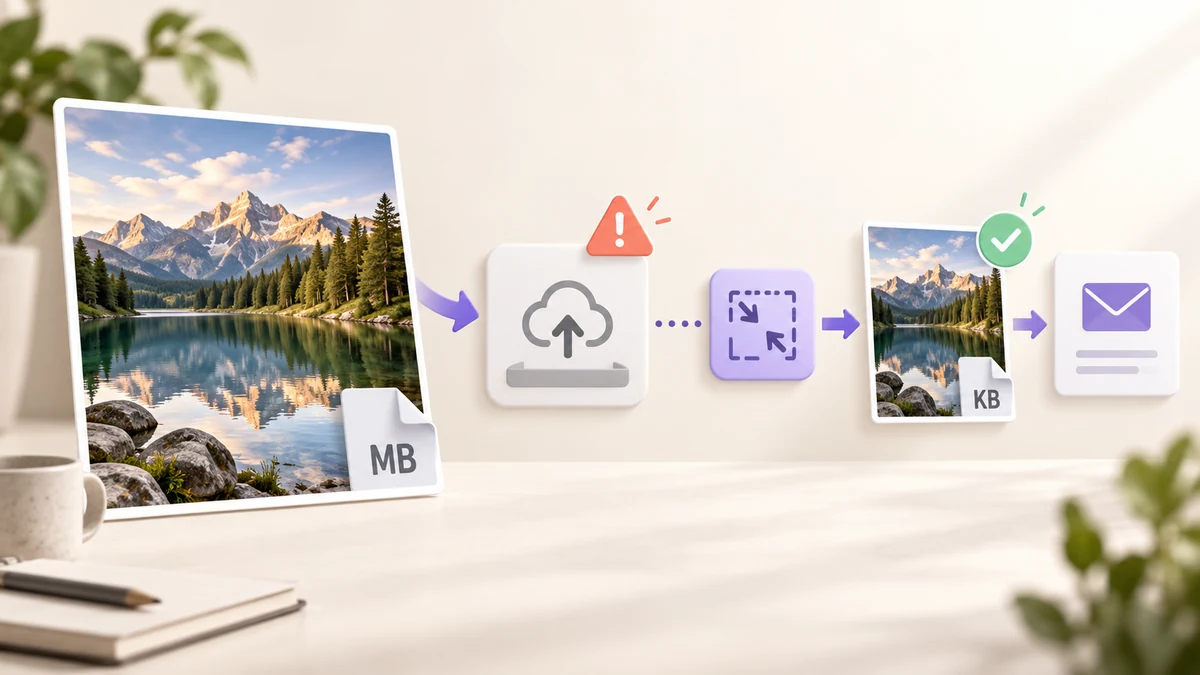
"File too large", "attachment exceeds the limit", "images must be under 2MB" — behind these messages is a set of very different numbers, but the fix is always the same: get the image under the channel's limit, ideally a whole batch at once. First the limits, then the method.
What the limits actually are
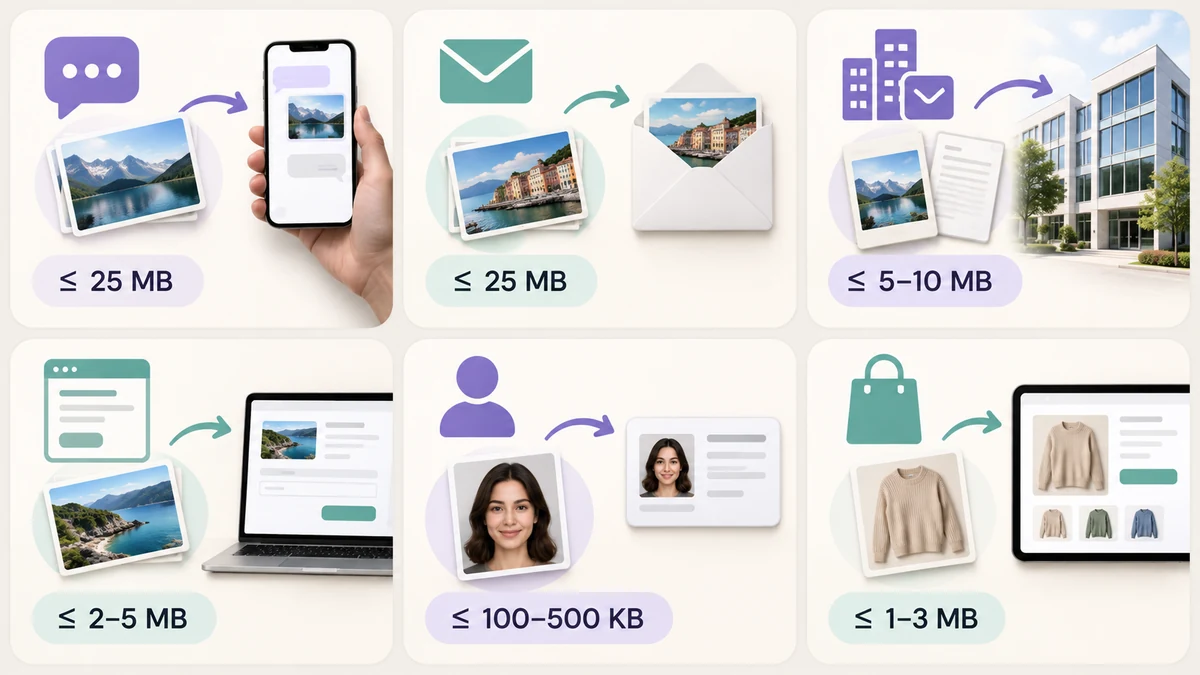
- Messaging apps: WhatsApp compresses photos by default and caps media around 16MB (documents 2GB); WeChat allows originals up to about 25MB before pushing you to send as a file; Telegram compresses photos unless you send as a file.
- Email: Gmail and Outlook allow 25MB per message; company and university mail commonly 10MB or even 5MB, and the limit is the whole message, not each file.
- Web forms and dashboards: job boards and submission platforms typically 2MB to 5MB; many WordPress sites default to 2MB.
- Government, exam and application portals: the strictest group — 100KB, 200KB or 500KB is common, often with JPG only and a pixel range.
- Marketplaces: main images 1MB to 3MB, detail images around 1MB, plus a pixel minimum.
The same phone photo sails through a chat app and is forty times too big for an exam portal.
Why phone photos are this big
A current phone camera produces 4000 × 3000 pixels and 3MB to 8MB per shot; iPhone HEIC is about half that, but many systems refuse it. The size comes from pixel count, not picture quality — on a screen, 1600 pixels wide and 4000 pixels wide look identical, while the file differs six or seven times over.
That is also why "shrink pixels, then compress" always beats "compress harder".
The thirty-second fix: a target per channel
Drop everything you need to send into Batch Image Processing and set two things for the channel:
- Size: longest side 2000 for chat apps and email; 1600 for web forms; for portals, fit inside whatever pixel box they specify.
- Output: JPG, with Target size (KB) at about 80 percent of the channel's limit — 1600 for a 2MB cap, 160 for a 200KB cap — to leave a margin.
Hit Process all: each image gets the highest quality that stays under the target, then everything downloads as one ZIP. HEIC photos go straight in without converting on the phone first. Everything runs in your browser; the photos never reach a server, whoever they are for.
For just one or two images, Image Compressor with a quick drag of the slider is faster.
Traps worth knowing
- Emailing PNG screenshots: a full-screen PNG is easily 2MB to 5MB. Convert to JPG at 85 percent, or keep PNG with the 256-colour palette, and it drops to a few hundred KB.
- Totals, not files: mail limits apply to the whole message; thirty photos at 800KB each still fail. For many files, discount the target further.
- JPG-only systems: WebP is smaller, but portals rarely accept it. Choose JPG.
- Black edges after compression: a transparent PNG converted to JPG is filled white, not black. Black bars usually come from the upload channel, not the compression.
A habit before sending
Make it routine: anything leaving your computer goes through the batch tool first at longest side 2000 and a 1MB target. That setting satisfies chat apps, email and nearly every form, and the re-encode strips location and device data from the photos — nothing about where they were taken travels with them.
For the stricter portals, handle those few files with the 200KB / 100KB / 1MB limits table.