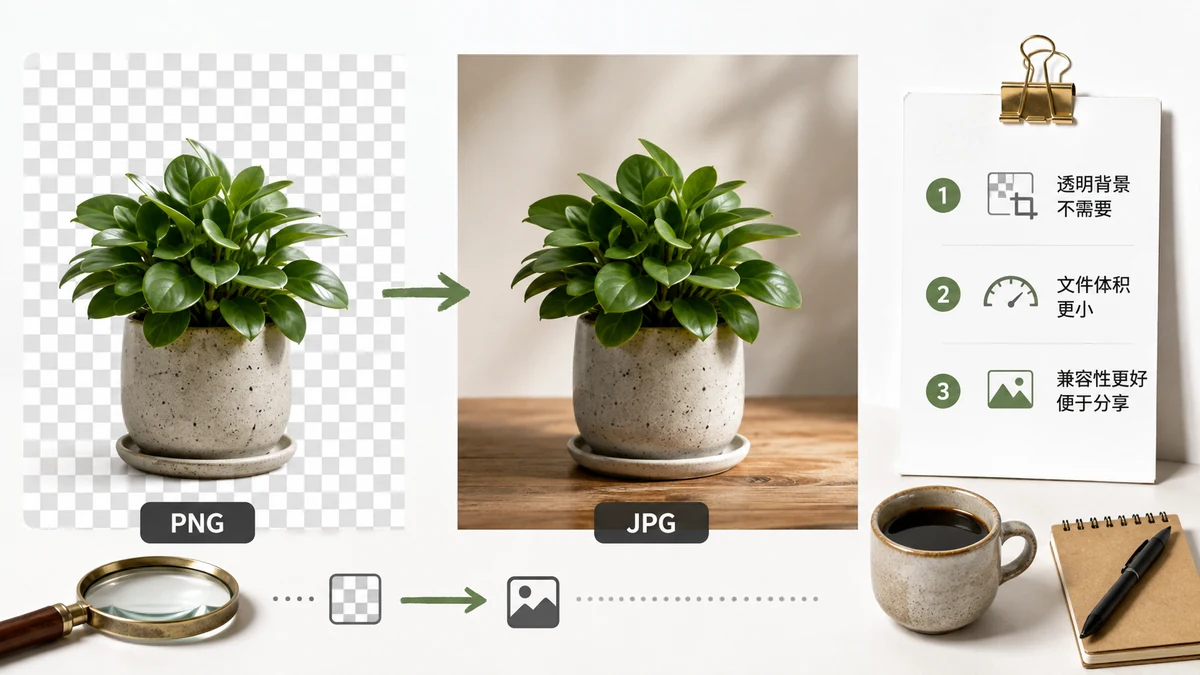
Short answer first: convert PNG to JPG when the image is a photograph and the file feels too big. Keep it as PNG when the image has sharp edges, text, flat color blocks, or transparency. That single distinction decides almost every case.
PNG and JPG were built for different jobs. PNG stores pixels losslessly, which is perfect for screenshots, logos, and diagrams where every edge must stay crisp. JPG throws away detail your eye barely notices, which is exactly what makes a 6 MB photo shrink to 600 KB without looking obviously worse.
The core trade-off
| PNG | JPG | |
|---|---|---|
| Compression | Lossless | Lossy |
| Transparency | Yes (alpha channel) | No |
| Best for | Logos, text, screenshots, line art | Photos, complex gradients |
| Typical photo size | Large | 5–10× smaller |
| Repeated editing | Safe | Degrades each save |
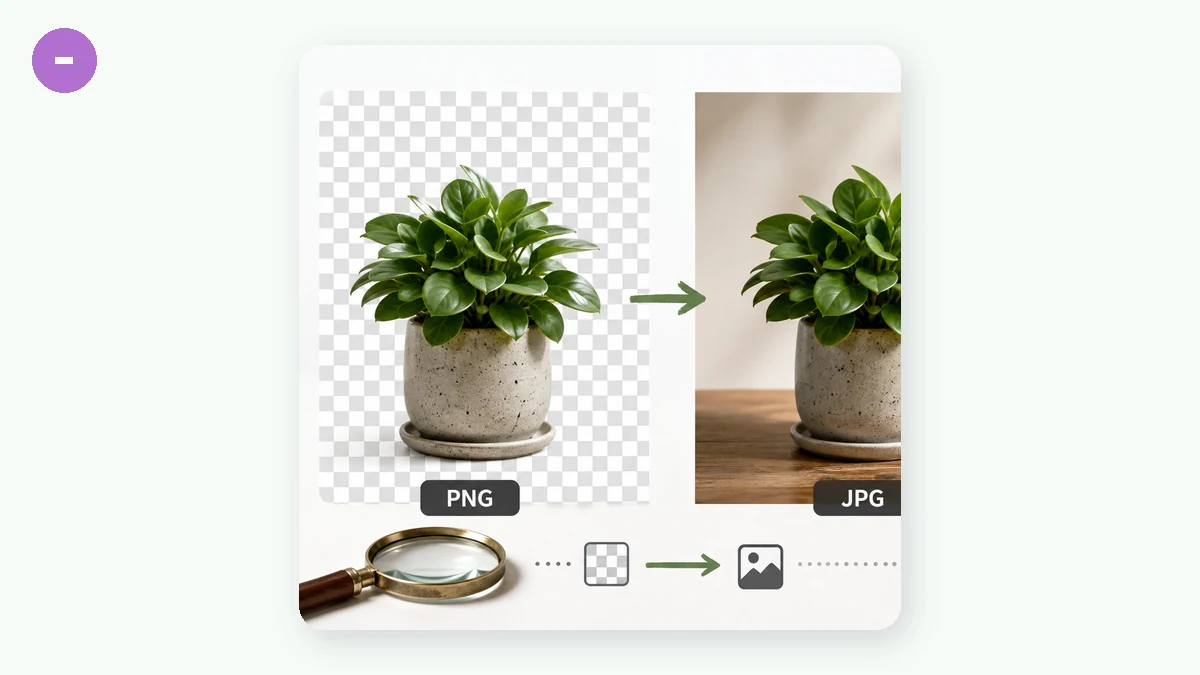
The transparency row matters more than people expect. If your PNG has a see-through background and you convert it to JPG, that transparent area becomes a solid color — usually white or black. There is no way around it; JPG has no alpha channel. If your logo needs to float over a colored page, JPG will wreck it.
When PNG to JPG is the right move
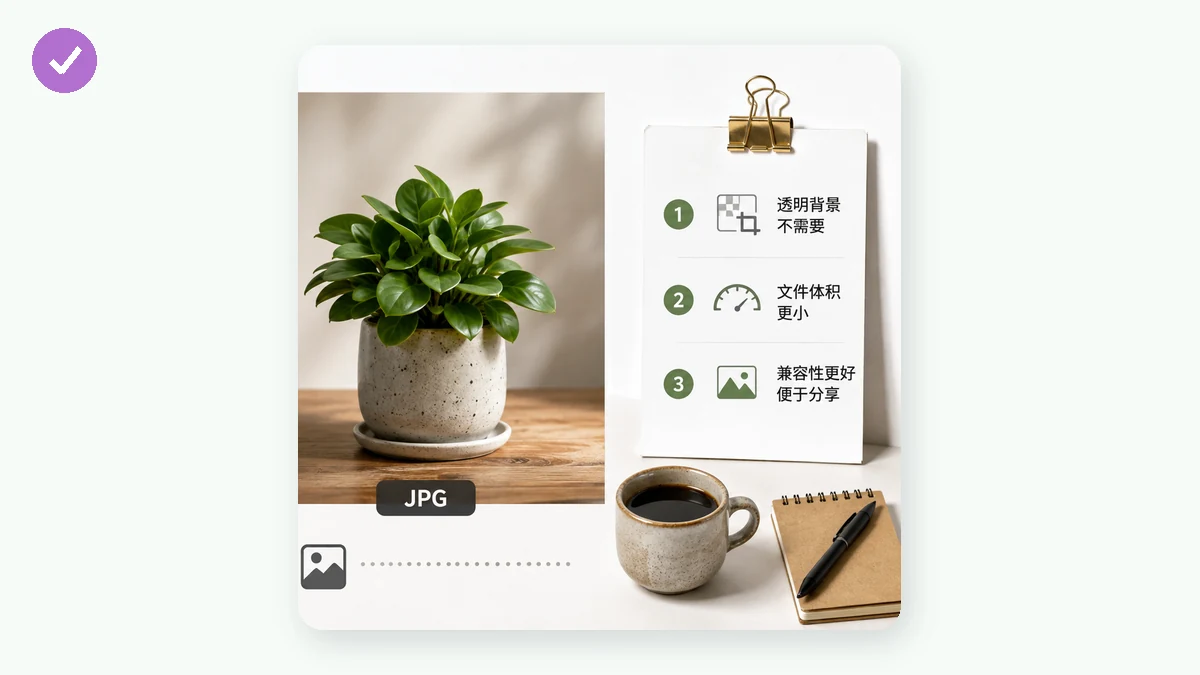
- A photo saved as PNG. This is the most common waste. Cameras and design tools sometimes export photos as PNG, producing files several times larger than needed. Converting to JPG at 80–85% quality typically cuts the size dramatically with no visible difference.
- You're emailing or uploading and hitting a size limit. JPG is the safest bet for compatibility and weight together.
- The image is going somewhere that doesn't need transparency — a blog body image, a product photo on a white background baked into the file, a slide.
When to keep the PNG
- Screenshots with text. JPG smears fine lettering and creates fuzzy halos around edges. PNG keeps text readable.
- Logos and icons. Flat colors compress terribly in JPG and beautifully in PNG.
- Anything with transparency you plan to reuse.
- Master files you'll keep editing. JPG loses a little more every time you re-save. Edit in PNG (or the original), export to JPG once at the end.
A middle path: WebP
If your destination is a website, there's often a better answer than either. WebP handles both photos and transparency, and it's usually smaller than JPG at the same quality. Every current browser supports it. So instead of PNG → JPG, consider PNG → WebP when the image is bound for the web and you want small files and alpha support.
How to convert without uploading anything
You don't need a desktop app or a site that ingests your files onto a server. The Image Converter runs entirely in your browser using Canvas — your images never leave your device, there's no account, and it works offline after the first visit thanks to the service worker. Drop in a batch of PNGs, pick JPG, choose a quality level, and download. Nothing is uploaded, so it's fine for private or sensitive images.
One practical note on quality: for JPG, somewhere around 80–85% is the sweet spot for photos. Push higher and files bloat for gains you can't see; push much lower and compression artifacts start showing up in skies and skin tones.
Quick decision rule
Ask one question: does this image have transparency, text, or hard edges? If yes, keep PNG. If it's a photograph and you want it smaller, convert to JPG. If it's for the web, consider WebP instead. That covers nearly every situation you'll run into.