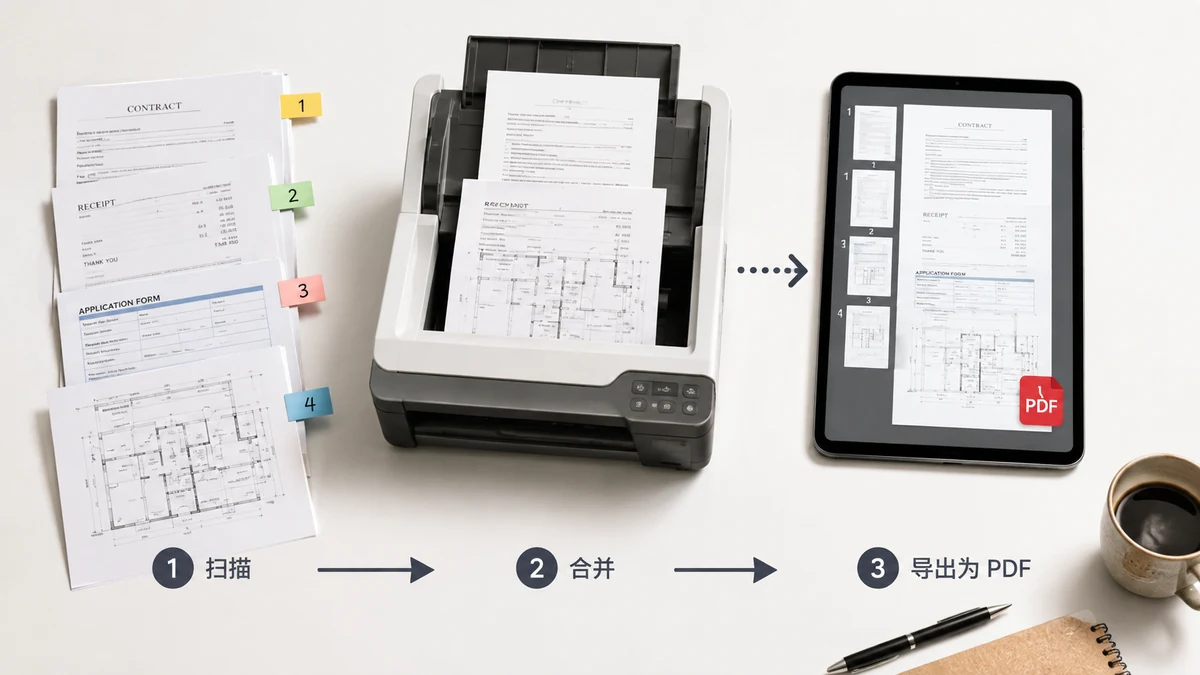
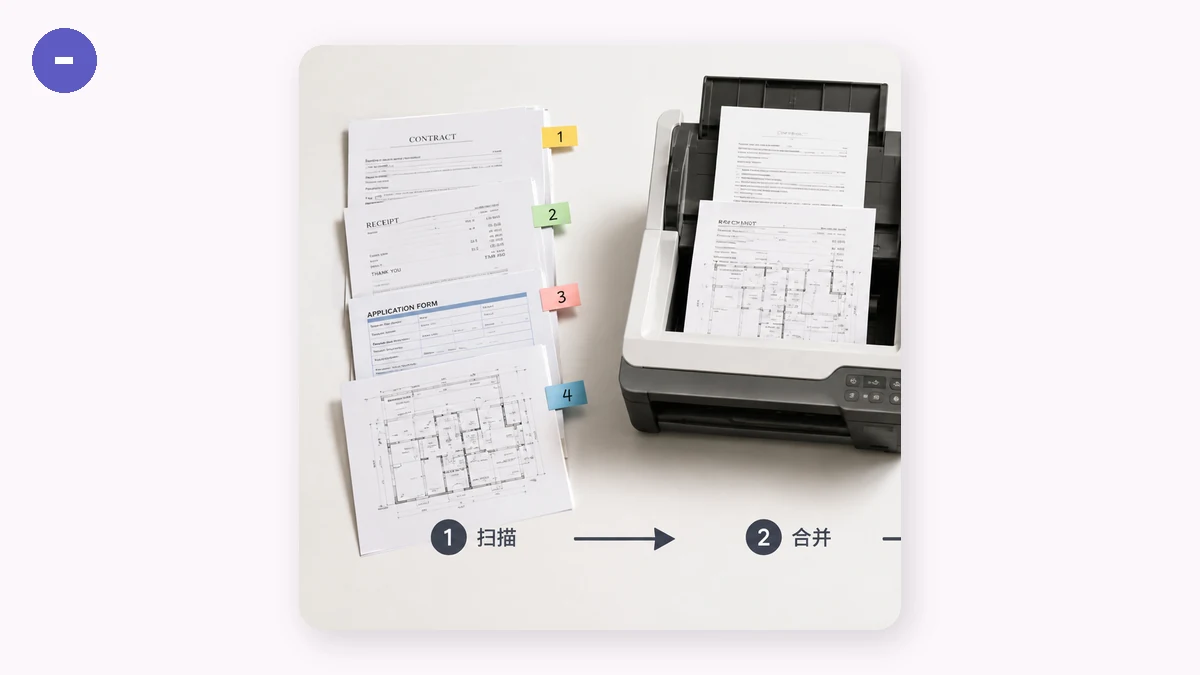
Scanning with a phone is easy; ending up with one tidy document is the hard part. You photograph a five-page contract and get five files. A scanner app saves each page separately. Receipts for an expense report pile up as a dozen JPGs and PDFs. Whoever's receiving them wants one PDF, in the right order — not a folder of loose pages they have to sort themselves.
This is a small task that goes wrong in predictable ways: pages in the wrong sequence, one page missing, or a "helpful" online tool that quietly uploads a signed contract to finish the job. Here's how to do it cleanly.
Get each page into PDF first
Merging works on PDFs, so if your scans are still images (JPG or PNG), turn them into PDFs first. Most phone scanner apps already export PDF; if yours saved photos, a browser-based image-to-PDF converter will wrap each image into a page without uploading it. Either way, aim for one clear page per file — a page that's cropped to the document edges and readable, not a dim photo with half a desk in the frame.
A quick check before you merge saves rework: make sure every page is present, right-side up, and legible. Fixing a page now is far easier than pulling a finished PDF apart later.
Combine them into one file, in the order you want
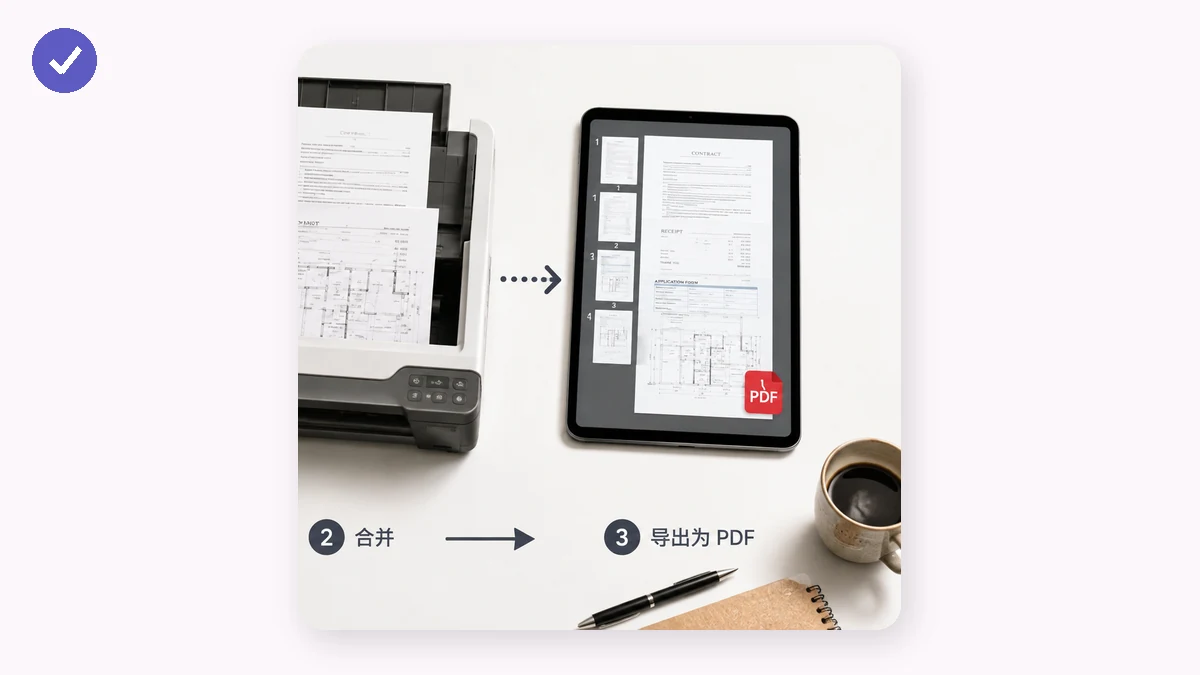
Once every page is a PDF, combining is the easy part. With tools.faxianai.com's Merge PDF, you drop in all the files, and each one shows up as a row with its page count and size so you can confirm nothing's missing. Then you set the sequence with up/down arrows — this is the step that matters most for a multi-page document, because the merged file follows your file order top to bottom. Remove any stray file you added by mistake, then merge and download a single PDF.
The whole thing runs in your browser. That matters here specifically because scanned documents are so often the sensitive kind — a signed lease, an ID, a medical form, bank statements for a loan application. With a browser-based merge, those files never leave your device: no upload, no account, no server keeping a copy. Once the page is cached it even works offline, which is handy when you're finishing paperwork on a train or a plane.
Getting the order right
Order is where multi-page merges usually stumble. Two habits help:
- Name files so they sort naturally —
page-01,page-02,page-03. Padded numbers keep page 10 from jumping ahead of page 2. - Confirm the order in the list before merging. The row order is the page order. Drag or arrow files into place and read down the list once before you export.
One honest limit to keep in mind: this tool reorders at the file level, and it merges whole files — it doesn't yet split a PDF, delete a page, or reorder pages inside a single file. So if one file already contains pages in the wrong internal order, fix that file first, then merge. For the common case — separate scans that just need to be joined in sequence — that's exactly what it's built for.
The result
What you hand over is one PDF that opens the same on any phone or computer, with pages in the sequence you intended and nothing extra stapled on. And because you did it in the browser, the documents you'd least want floating around stayed exactly where they should — with you.